Saturday, October 11, 2014

Assistive Technology Computer Keyboards

“Assistive technology that facilitates computer access for students with disabilities exists on a continuum from low tech to high tech.  Low-tech solutions include keyboard labels, selecting/pointing devices, keyguards, and moisture guards” (Dell, Newton, & Petroff, 2012, p. 204).  Mid-tech to high-tech use alternate keyboards, touch screens, eye-gaze systems, etc.

The significance of the assistive technology continuum is that using low-tech assistive technology should begin.  Only if low-tech assistive technology does not meet the needs of the student should mid-tech and high-tech solutions be considered.

There are many different types of mid-tech to high-tech options for the computer.  I will only discuss the alternative keyboards that are available for students with special needs (mid-tech to high-tech).  The major categories of alternative keyboards are:

·       expanded keyboards – (also known as enlarged/oversized keyboards) these keyboards would be appropriate for “students with poor fine motor control who need a large target area to execute an accurate keystroke whether they are using their hand, foot, or typing aid” (Dell, Newton, & Petroff, 2012, p.185)
 
Expanded Keyboard (http://www.gateway2at.org/images/altkeyboard3.jpg, 2014)
 
·       mini-keyboards – these keyboards are good for “students with motor impairments that (1) restrict their range of motion, making it difficult or impossible to access all the keys on the standard keyboard and (2) have good accuracy within a narrow range of motion” (Dell, Newton, & Petroff, 2012, p. 186)
 
·       one-handed keyboards – these keyboards are appropriate for students that only have one strong/usable hand.  There are two types of keyboards in this category: the Half-QWERTY keyboard and the Dvorak keyboard layout.


Half-QWERTY Keyboard (http://www.onehandedkeyboard.com/imagesfolder/halfkeyboard.jpg, 2014)
Dvorak Keyboard (http://www.dvorak-keyboard.com/images/dvorak.gif, 2014)
 
·       on-screen keyboards – this type of keyboard is appropriate for “students who do not have the motor skills necessary to use the keyboard but can control a mouse or mouse emulator such as a joystick, trackball, or a head-controlled mouse” (Dell, Newton, & Petroff, 2012, p. 189)

Thursday, October 9, 2014

Computer Use for Students with Disabilities

There are many universal design features that are accessible on computers for students with disabilities.  Students that have physical disabilities, vision impairments or blindness, and hearing impairments or deafness are able to have adaptions to computers used to help accommodate their individual disabilities.

For students that have physical disabilities there are different keyboard modifications and mouse control options that can be used:

·       Stickykeys

·       Slow Keys

·       Mousekeys

For students that are hard of hearing or are deaf there are:

·       Beeps, tones, and voice messages that can be replaced with visual signals, icons, or captions.

For students that have visual impairments or are blind there are:

·       High-contrast color scheme

·       Screen magnification


·       Enlarge the mouse pointer

·       Voiced feedback – reading everything on the screen

Wednesday, September 24, 2014

Incorporating Assistive Technology into the Classroom

There is a lot more to making a classroom accessible to all different learners than UDL.  As an educator, you may have a student in the classroom that needs special assistive technology to help aide them navigate and succeed in your classroom.

The types of students I am thinking about at the moment are: the students that are hard of hearing and the students that cannot speak. 

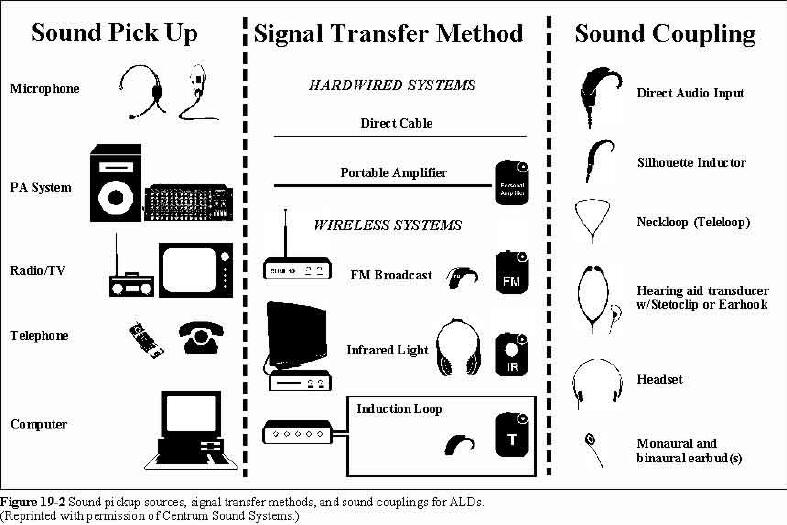
There are many different forms of assistive technology for individuals that are hard of hearing.  Since this blog is about students in an educational setting, I will quickly explain assistive listening devices.  “ALDs help reduce the effect of an ‘acoustically unfriendly room’.  They catch a desired sound… as cleanly as possible and amplify it for students who are hard of hearing.” (Dell, Newton, & Petroff, 2012, p. 142-143)


(http://www.centrumsound.com/Audiology/images/fig2.jpg, 2014)
This is important so that a student is able to hear a lecture/lesson even when the teacher is moving around the room with their head down (demonstrating an activity – a science lab for example) or facing the blackboard/whiteboard.
There are multiple different forms of assistive technology for individuals that cannot speak; called alternative and augmentative communication devices (AAC).  AAC is typically referred to as augmentative communication; which is all about helping individuals who cannot speak to have the ability to interact with others (Dell, Newton, & Petroff, 2012, p. 150).  Since my experience is mostly within autistic support classrooms, this form of assistive technology (AT) is what I’m most familiar with.  Sign language is a form of AT, as well as alphabet boards, and of course computerized ‘talkers’.


Sunday, September 21, 2014

Some Additional Resources about UDL


As with everything on the internet, there are many other resources that I have not discussed or shared on this blog about UDL (Universal Design for Learning).

·       UDL Toolkit (http://udltechtoolkit.wikispaces.com) – This toolkit I discussed in a previous post.  Just the basic layout of the site incorporates the UDL model; it is bright, fun, inviting, using both text and pictures to draw a person in.  There are so many tools and interesting features on this site that it is a must have for every educator implementing universal design for learning into their classroom.

(http://udltechtoolkit.wikispaces.com, 2014)
 
·       CAST (http://www.CAST.org) – Is another resource that I introduced and discussed on this blog about UDL.  There is an entire section on the site about UDL.  The video on my “What is UDL” post was a CAST video introducing the basics of UDL. 
There are many other resources that are great that I have not discussed on the blog yet.  Here are a few that I have come across in my research about Universal Design for Learning:
·       National Center on Universal Design for Learning (http://www.udlcenter.org/) – This site I might have pulled a picture or two but I didn’t really discuss different aspects of the page and how useful it is.  Go check it out!
·       CAST UDL Lesson Builder (http://lessonbuilder.cast.org/) – This is a part of the CAST website but allows educators to build and adjust lessons to incorporate the UDL model.  This is great for educators to explore.
 
(http://lessonbuilder.cast.org, 2014)
·       Universal Design for Learning video (http://youtu.be/I92QkPdvYRI) – There are many videos available on the internet.  This one is useful because it helps educators (as well as others) realize what UDL is and how much it is being incorporated into the classroom today. 
I hope you are exploring more resources than what I have discussed in regard to Universal Design for Learning through my blog so far and even this post with some extra resources.  If you have any UDL resources you would like to share with me please leave a comment with it!


My Use of UDL

Now that I have done research and am really understanding the concept behind UDL (Universal Design for Learning) and what that means in the classroom and in the world; I figured I’d share with you my universal design for learning. 


Referring to the guidelines of Universal Design for Learning (from my “So, What is Universal Design for Learning?!?” post I am able and willing to share with you my strengths and weaknesses with UDL.

I like starting things out with the negative and then ending on a positive.  So first, let’s discuss my weaknesses.

·       Providing options for executive functioning – As an educator, I think I am still teaching my students how to perform different aspects of executive functioning so I tend to have everything outlined for them instead of allowing them to come up with their goal setting and strategy development.
·       Providing options for self-regulation – I have trouble remembering to allow my students to have the opportunity for self-regulation. 

However, I believe I have strength in incorporating other aspects of the Universal Design for Learning model.  I think it’s time to discuss some of my strengths.

·       Providing options for perception – I believe I incorporate into my lessons and teaching with visual and auditory ways of expression to the students.  It is important to ensure that both visual learners and auditory learners are getting all the instruction/information needed to succeed in their learning.
·       Providing options for language, mathematical expressions, and symbols – As an educator, I strive to incorporate multiple types of media, explanation through the different media I use, and clarify any misunderstandings to help each student succeed.
·       Providing options for comprehension – It is just as important to incorporate different means of perception into a lesson and teaching moment as it is in giving students the ability to gain and pull from background knowledge.

Now that I have looked at myself as an educator; in regard to my strengths and weaknesses incorporating the Universal Design for Learning model, I invite you to do the same and see what areas you could work on to help strengthen your implementation of UDL in the classroom and life.

Saturday, September 20, 2014

Potential Curriculum Barriers Before Implementing UDL

On the Cast website there is another area that is interesting and a good resource for educators trying to implement UDL (Universal Design for Learning) into their classroom and curriculum.  It is within the Cast “Teaching Every Student” section under “Getting Started with UDL” and it is a tool called: Curriculum Barriers Finder.  This tool allows an educator to take a case study on the site and learn about potential curriculum barriers; it allows the educator to compare materials/methods, the student qualities (either weak or strong), and the potential barriers / missed opportunities. 

For you to get an idea of what I’m talking about, here is a potential curriculum barrier using the type of student I work with in the special education program within a typical reading comprehension classroom:

I encourage all of you to go to the site and download the Curriculum Barriers Template and use it to find potential curriculum barriers for the students in your classroom.


Thursday, September 18, 2014

Let's Delve a Little Further into UDL

Cast not only has the basic definition of UDL (Universal Design for Learning) like I explained in the last post, but also goes further with the explanation into what UDL is. 

Cast has a “Teaching Every Student” page that explains, again, the basics of UDL, activities for UDL, and some case studies using UDL.  Within the “Activities for UDL” is even an activity entitled “Getting to Know You the UDL Way” which allows every educator to go through a scenario listing your background knowledge and skills, your strength, and your challenges.  It’s actually a pretty cool activity to do because it helps you identify these different aspects which, in turn, help you understand better about UDL.  The case studies are also helpful because it helps allow each educator to apply what you have been learning in regard to UDL to specific scenarios within the classroom.  There are three different case studies that are available to look at.

I believe this is a site that once I have my own classroom if I need a refresher of what UDL is I will be looking back at it.  I believe the best resources on this page, for me, would be the “Getting to Know You the UDL Way” and possibly the case studies to apply the UDL principals to real situations.